
How a Wallet loyalty card works, from the QR poster to the lock screen
 Oleksii Andriiuk
Founder
Oleksii Andriiuk
Founder
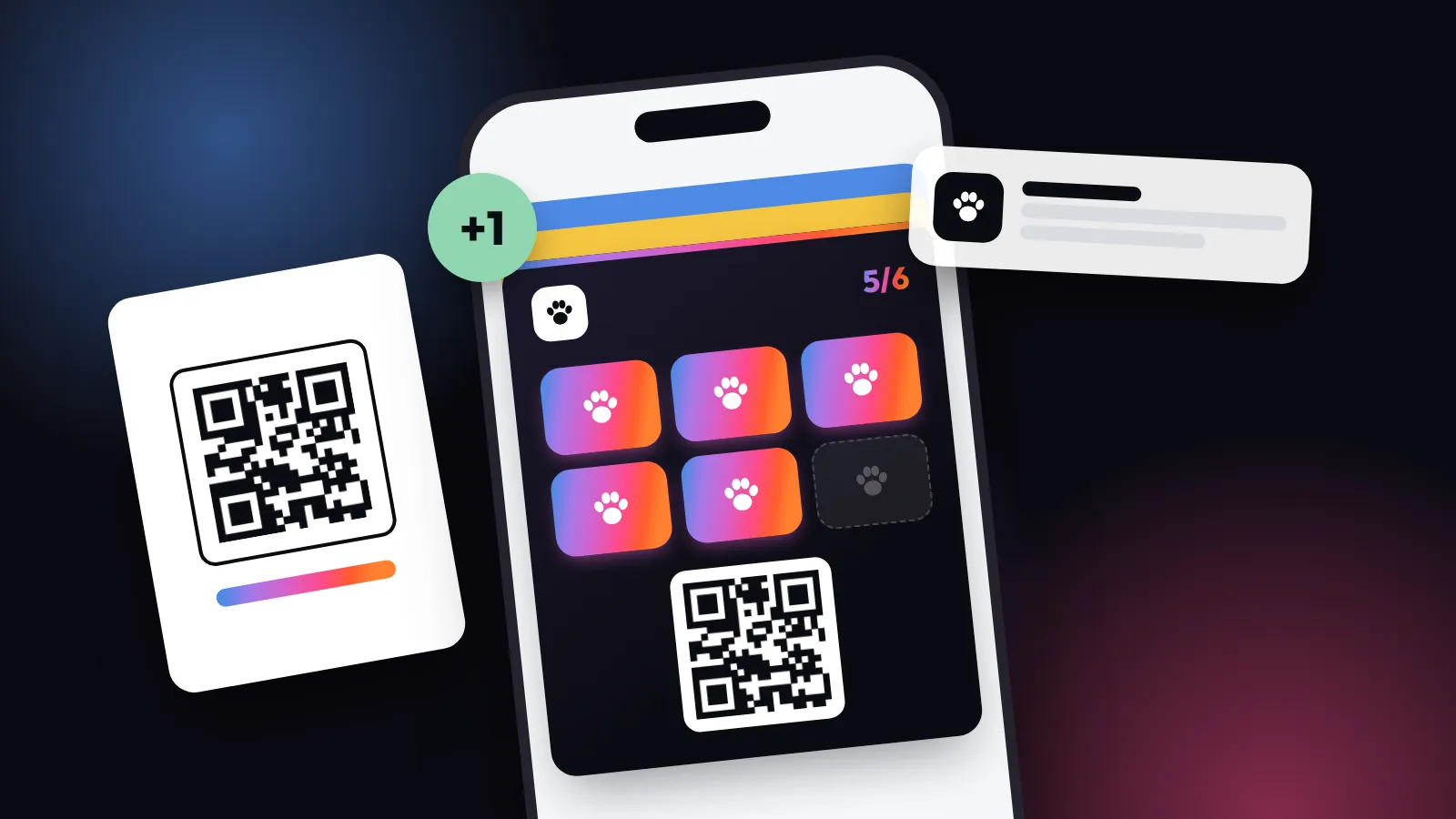
A Wallet loyalty card is a pass that sits in Apple Wallet or Google Wallet next to the customer's bank card and boarding passes. The customer adds it once by scanning a QR code, with no app to install; after that, every stamp or point changes the card on their phone, and a short message from your shop can appear on their lock screen. Below is what happens at each step, and the two places where it can quietly go wrong.
If you are thinking about a Wallet card, you probably have two questions: "Do my customers have to download something?" and "Will they actually see my message?" The first answer is no. The second is "usually, if two things are true", and that answer deserves more than a sentence. So for this post I read through what Apple and Google tell the people who build these cards, and translated it into shop language. I'll follow one example all the way through: a pet shop, where a customer buys a big bag of dog food roughly every five weeks, and every bag earns a stamp.
1. The customer scans the poster at the till
It starts with a QR poster by the till, or a sticker on the door. The customer points their phone camera at it, and a page opens in the browser. They type an email address, confirm a short code, and tap "Add to Apple Wallet" or "Add to Google Wallet". That's it. If the phone has neither, the card opens as a web card in the browser instead.
There's no account to create and no password to forget. For a pet shop, that matters more than it sounds: the person buying the food is often holding a lead in one hand and a 12 kg bag in the other. Anything longer than a scan and a tap simply won't happen at the counter.
2. The phone stores a pass, not an app
What lands in Wallet is a pass: a small card with your name, your colours, the stamp count, a QR code for scanning, and a back side with the terms. A pass can't do much on its own, which is the point. It has no menus to learn and nothing to update in an app store.
What it does do, quietly, is tell the shop's server: "when this card changes, let me know". Apple describes this step as the phone registering the pass and handing over a token for update notifications (Apple Developer). In plain words, the card in the phone is a picture of the count. The real count lives with us, on the server, and the picture gets redrawn when it changes.
3. A stamp is added at the counter
At the till, your staff scan the card's QR code with any phone and tap to add a stamp. If your till is connected (we work with Square, Lightspeed, SumUp, Toast, Clover, Zettle and Shopify POS on the Growth plan and above), the stamp comes from the receipt and nobody has to scan anything.
Either way, the stamp is saved on the server first. The customer's phone doesn't know about it yet.
4. The phone gets a nudge and redraws the card
This is the part I found most interesting in the documentation. On iPhone, the server sends the phone a push notification, and Apple's instruction is that it should carry an empty payload: no stamp count, no message, nothing. Apple's reasoning is that push notifications aren't guaranteed to arrive and several can be merged into one, so anything inside could get lost (Apple's pass update guide). The nudge only says "something changed". The phone then asks the server which cards changed and downloads the new version.
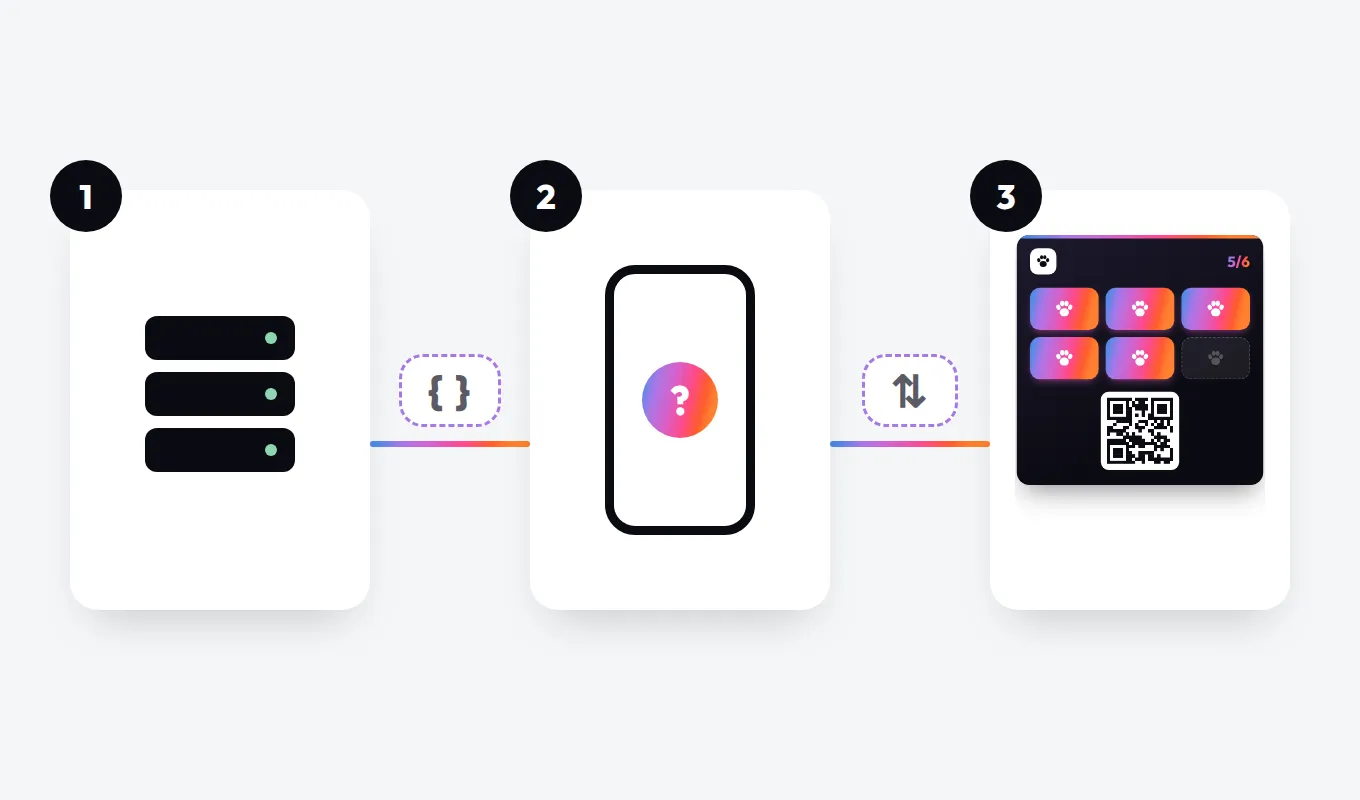
Google Wallet works differently under the hood (the shop's server updates the card through Google), but the customer sees the same result: the fourth stamp becomes the fifth.
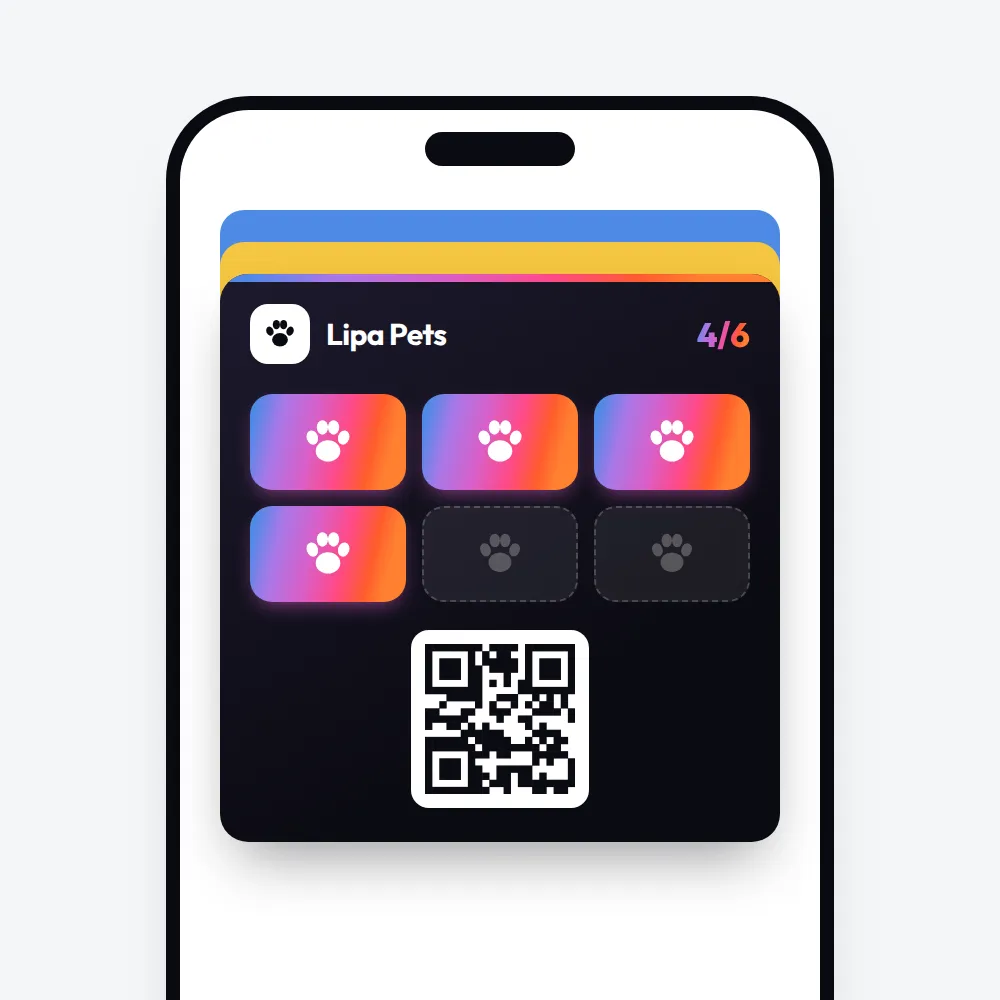
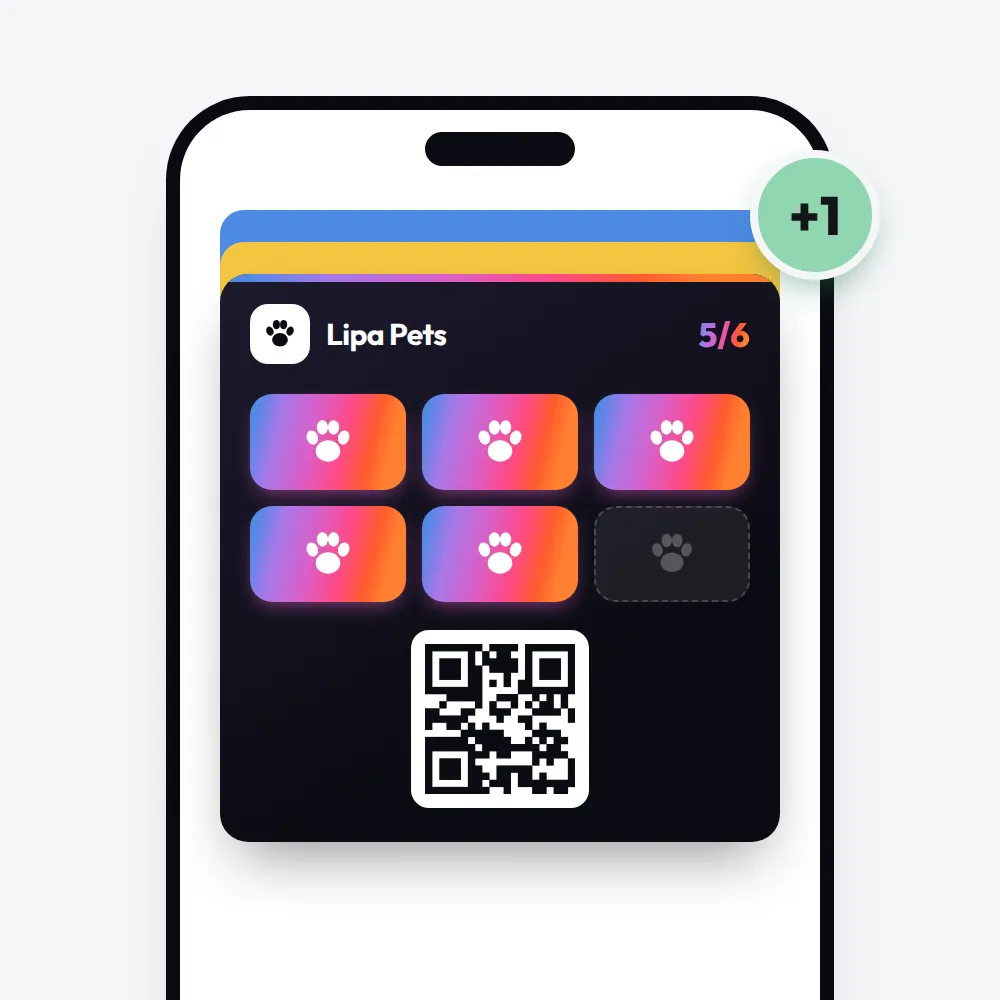
For you, the practical upshot: if a customer's phone is offline at the till, the stamp isn't lost. It's on the server, and the card catches up when the phone is back online.
5. A message appears on the lock screen
Now the second question, the one about messages. On iPhone, Wallet shows a notification when a line on the card changes and that line is set to announce its changes. Apple calls this a change message, and it's described in the same Apple guide. It's how a "welcome back" or "your reward is ready" note reaches the lock screen: the card changes, and the change is announced.
Google Wallet has messages attached to the card, and it sets a hard limit. A loyalty card can receive at most 3 messages that trigger a push notification in 24 hours, and at most 3 notifying updates of fields like the points balance; users must have notifications on for their passes to see them (Google for Developers, as of October 2026).
| Apple Wallet | Google Wallet | |
|---|---|---|
| How the card changes | An empty nudge, then the phone downloads the new card | The card is updated through Google |
| How a message shows | A line on the card changes and is announced | A message attached to the card |
| Daily limit on notifications | No limit published | 3 messages and 3 updates in 24 hours |
| Customer can mute it | Yes | Yes |
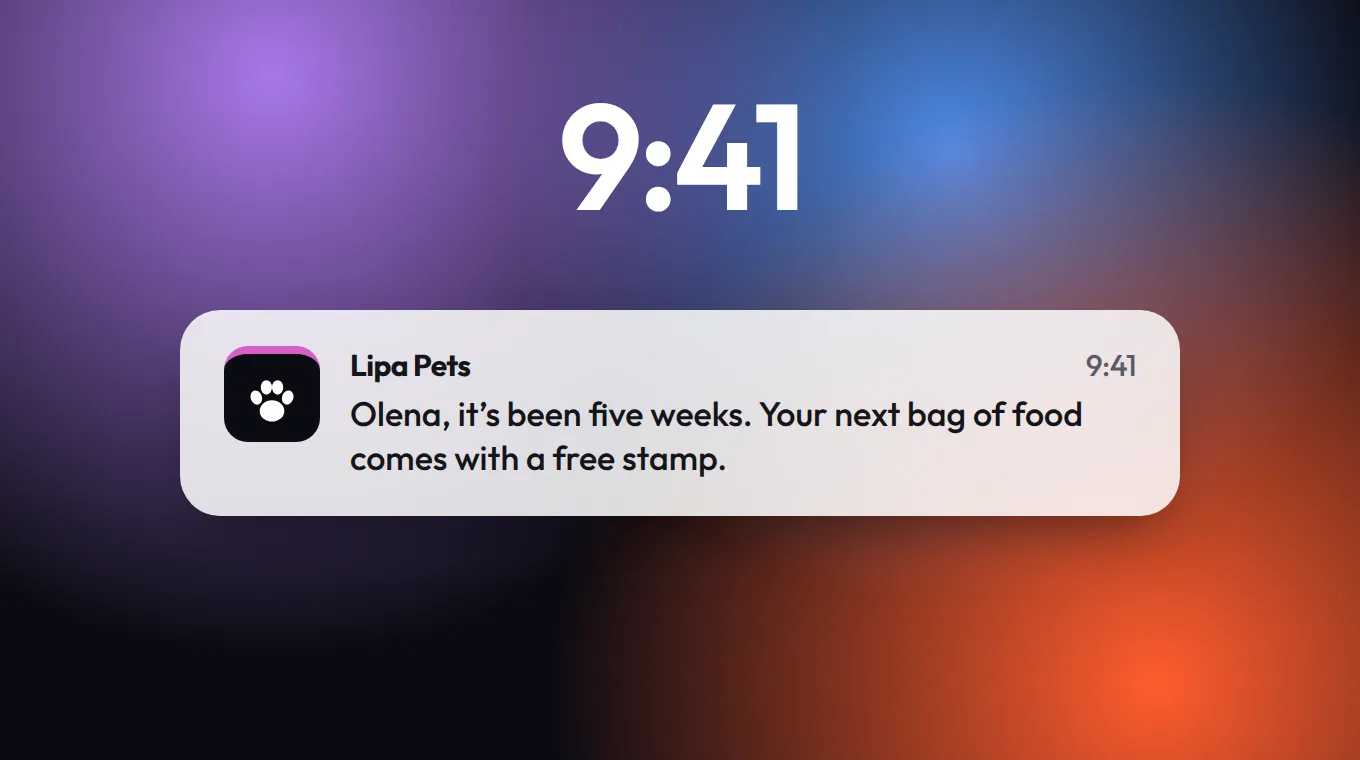
On our side, push messages on the card are part of every plan, including Starter at 19 € a month per location (pricing, October 2026), and each customer chooses what they want to receive.
The two places it quietly goes wrong
Everything above works. Where it fails, it fails silently, so it's worth knowing where to look.
The card never made it into Wallet. Someone scans, types their email, confirms the code, and then the queue moves and they put the phone away before tapping "Add". They think they have the card. You think they have the card. Nobody does. The fix is a five-second habit for the team: when someone joins at the counter, ask them to show the card on their screen before the first stamp goes on.
Notifications are off. A customer can turn off notifications for Wallet, or for one card. The card still updates, the stamps are still there, but your message never shows on the lock screen. You can't switch it back on for them, and you shouldn't want to. The only real fix is sending fewer, better messages, so nobody has a reason to mute you in the first place.
That's also my rule of thumb, and Google's limit makes the point for me: if a platform has to cap a shop at three notifications a day, someone has clearly tried more. I'd send no more than two messages a month per card, and make each one about the customer's own card: a stamp they're close to, a reward waiting, a visit that's overdue. The barber shop stamp card setup shows one such message, timed to the moment a regular goes quiet, and the Black Friday plan has four more you can adapt.
The card is the easy part
Here's what this explainer leaves out on purpose. The technology I've just walked through is solid. Apple and Google have been running passes for years, and the boarding pass in your own Wallet uses the same machinery. What decides whether your loyalty card works is everything around it: whether your team asks every customer, whether the reward is worth five weeks of dog food, and whether your messages are something a person is glad to see on their lock screen.
So if you're weighing a Wallet card against paper, I wouldn't spend long on the technology. I'd spend that time on one question: what would make your regular glad to see your name on their screen? If you can answer it, the card does the rest. You can see the card types we offer and try one free for 30 days, no payment card needed.
More stories
 Gift cards for small business: 7 mistakes to fix before Christmas
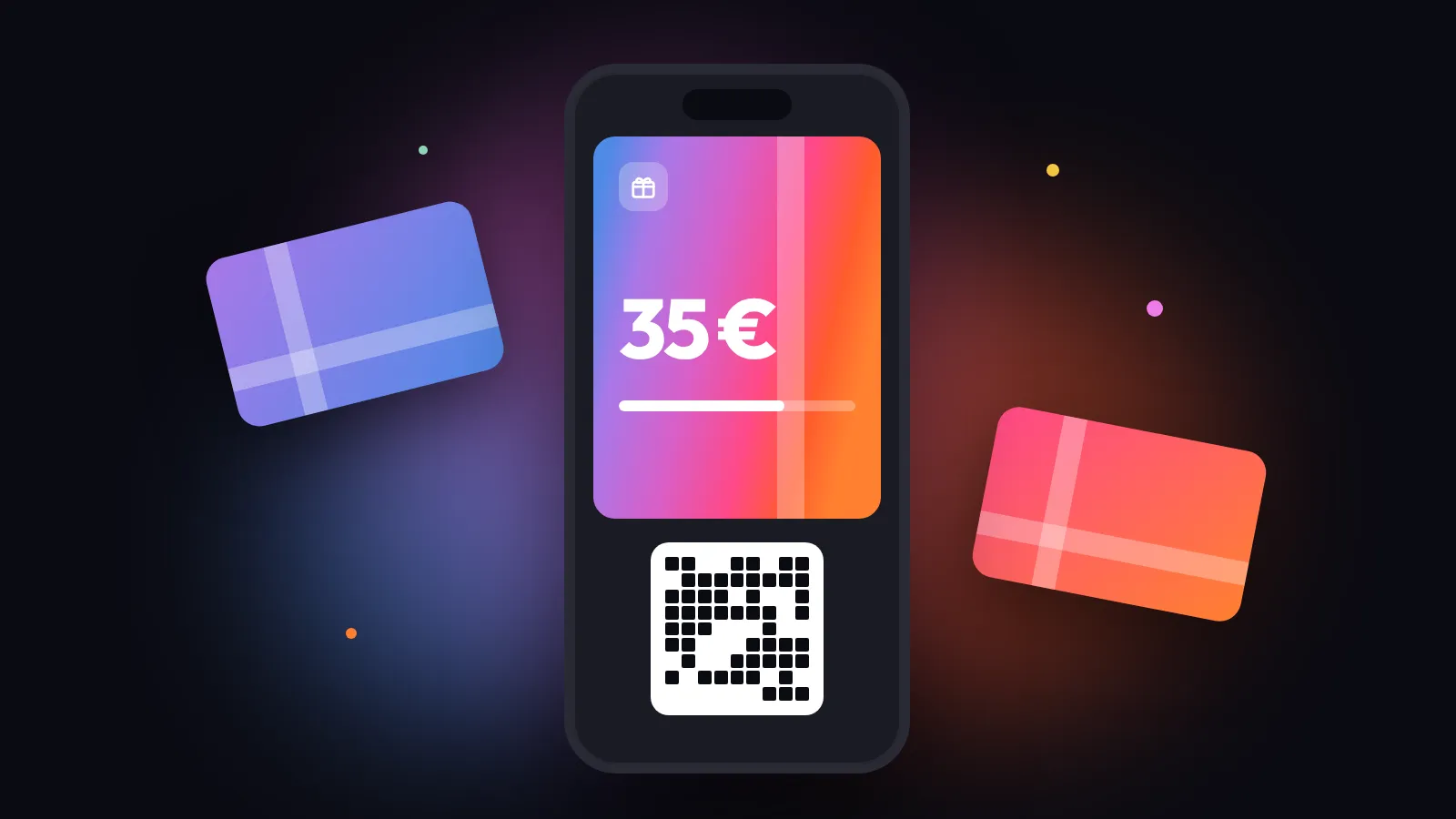
Paper vouchers nobody can track, odd amounts, risky expiry dates and a forgotten recipient: seven gift card mistakes and what to do instead.
Gift cards for small business: 7 mistakes to fix before Christmas
Paper vouchers nobody can track, odd amounts, risky expiry dates and a forgotten recipient: seven gift card mistakes and what to do instead.
 Loyalty program for a barber shop: a stamp card built for the haircut cycle
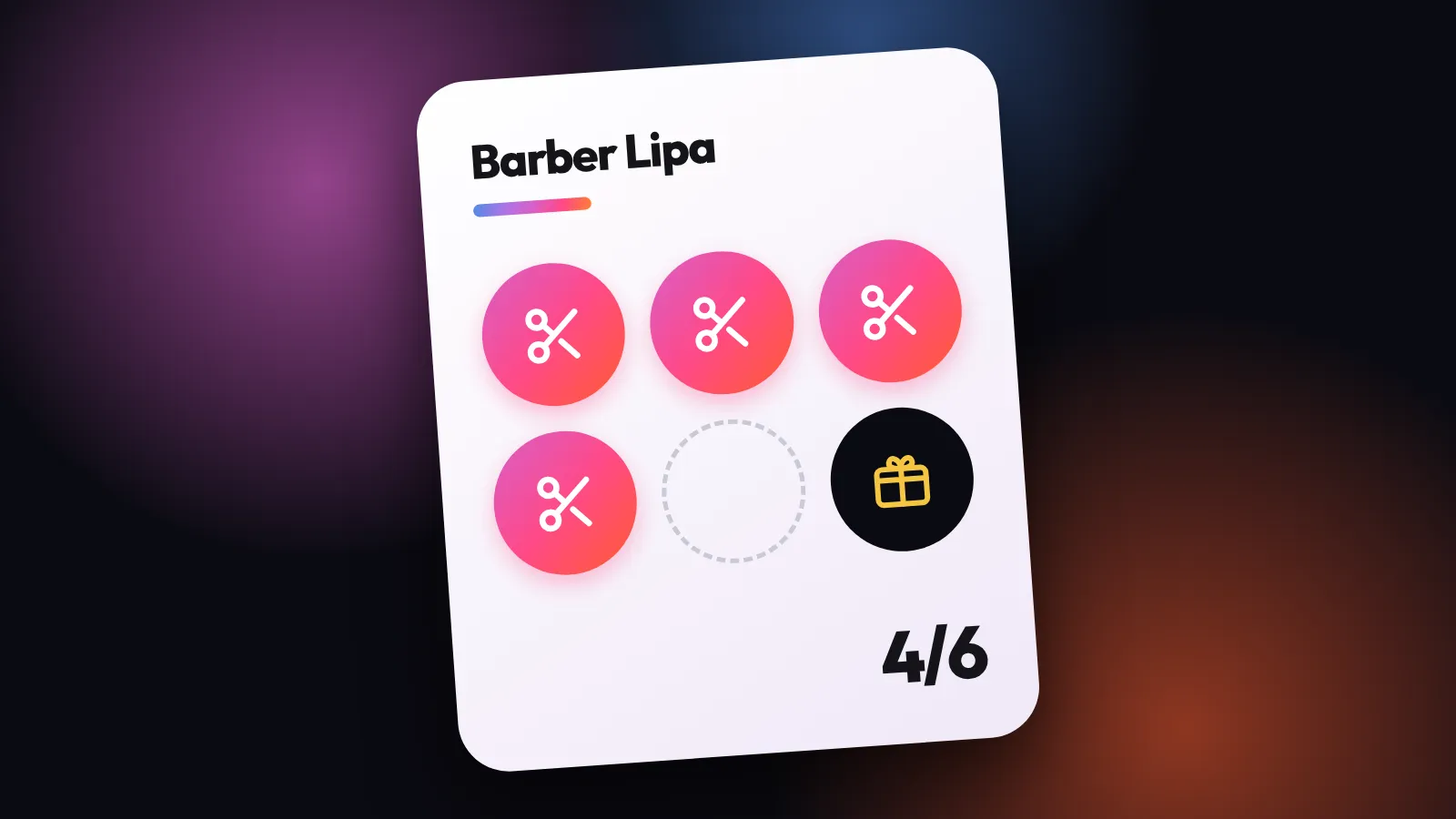
A six-stamp card, a reward for quiet hours and one message for the customer who went quiet: a barber shop loyalty setup you can copy.
Loyalty program for a barber shop: a stamp card built for the haircut cycle
A six-stamp card, a reward for quiet hours and one message for the customer who went quiet: a barber shop loyalty setup you can copy.
 Black Friday for small shops: a loyalty plan that rewards your regulars
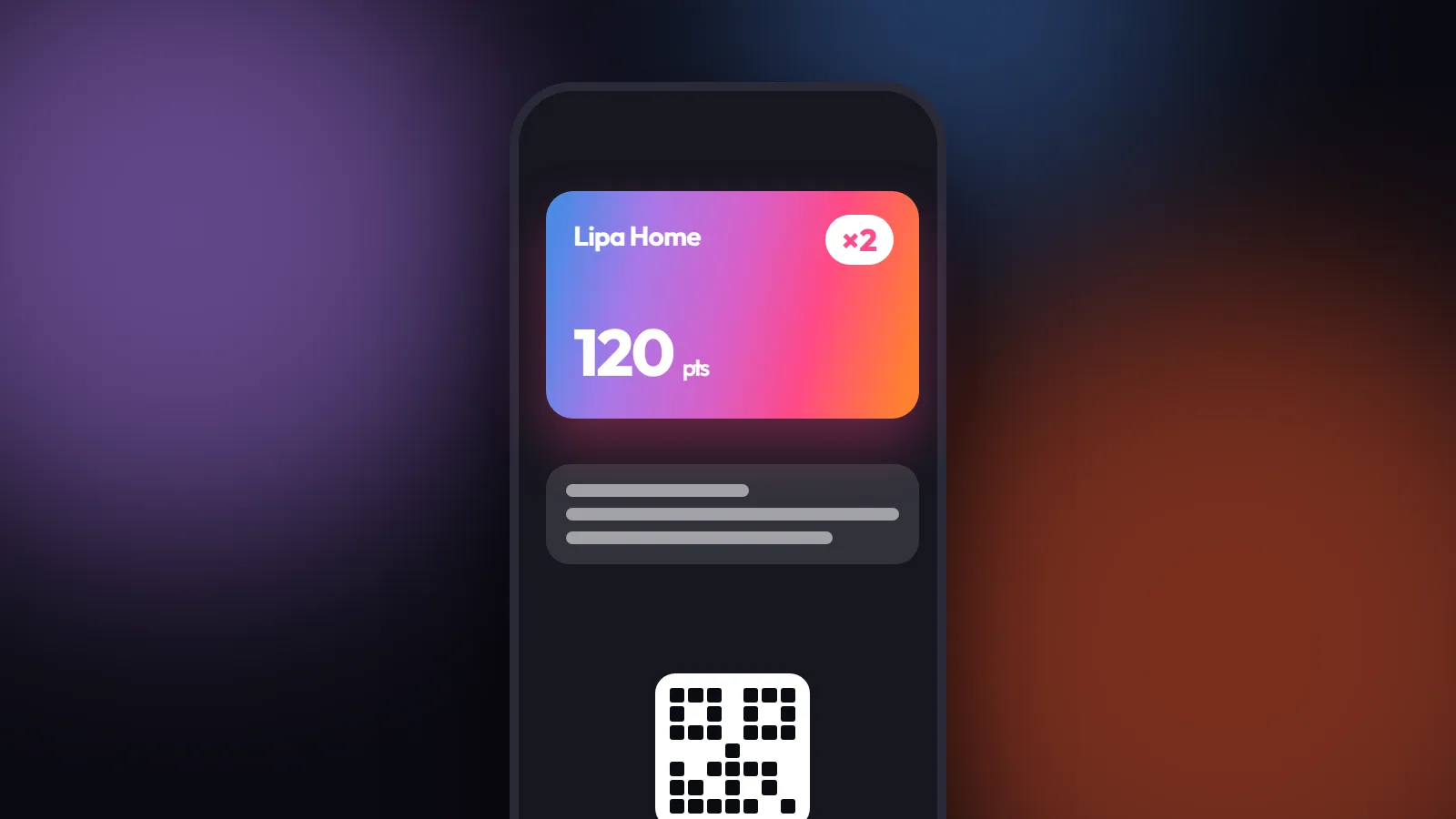
Skip the blanket discount. A dated plan from today to January that rewards cardholders on Black Friday weekend, with message texts to copy.
Black Friday for small shops: a loyalty plan that rewards your regulars
Skip the blanket discount. A dated plan from today to January that rewards cardholders on Black Friday weekend, with message texts to copy.